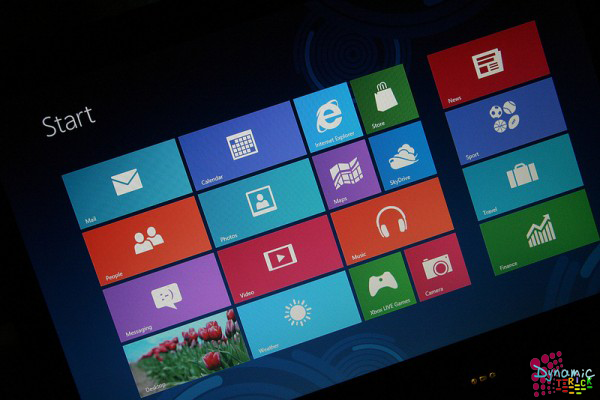
As we all know Windows 8 have recently came in the market! Lots of useful and helpful Windows 8 Applications are available in the market at present time.Here i am referring you some best Windows 8 Applications.Below you can see Top 5 Best Application of windows 8,these five Applications are best from other Applications.These all applications are touch friendly apps and working fine in all the Windows 8 OS.All Top 5 apps make your Windows 8 PC or tablet creative and informative.I think you'll definitely like these all Application which have selected by me.
Here i am not including Microsoft Office because it already comes included with Windows RT and the latest 2013 version for Windows 8 is not out yet.If you want latest Microsoft Office then you can get it as a free preview.So at this time you can only use free Beta version of Microsoft Office 2013 in your Windows 8 OS.
Here i am also removing some other useful and helpful apps that already come preloaded on Windows 8 OS like - Games,IE,Messenger,Music Player and Video Player,Mail and Calendar also.Neither i am including Games here nor informational apps like - Weather,Travel,News and Maps.I am not including Games here because There are lots of Games available like Racing,Sports and Action Games on the market.So you can get all high graphics Games from the internet.I wanted to do for this Top 5 list was to assemble a collection of best apps that can make your life easy.These all Applications are free.So you can enjoy best applications without spending any money.You get all of these wonderful apps from the Windows Store,which you will find on the Start screen of new Windows 8 OS.
.:Top 5 Latest Windows 8 Apps:.
Fresh Paint App:-
Fresh Paint Windows 8 App is a one of the best App of the Windows 8. In this App you can mix all the new colors on a palette.This is a creative App for children who like to draw something special. Fresh Paint is absolutely free for you.You can install this app by click on below download link.With the help of this App you can create a painting on a blank sheet or on your photo.Fresh Paint gives you top variety pencil and brush for drawing and this App gives you lots of patterns and textures also.This App provides you social connectivity for share some creative photos which you have created.It's advance version of Paint.You will get Fresh Paint App of Windows 8 in apps market of Microsoft.Just click on below link for install the App in your Windows 8 OS.
If you like song's mixing then this is a perfect App for you.In this App you will get some awesome features like loop,cue and more.This is a precious App for those that just like mixing of songs.Music Maker Jam provides you some useful options which you will never see in other Apps.You can raise and lower the volume, and change keys in loops.When you will use this App then you feel some awesome sound effects.In this App you can record your own track easily.You will get Music Maker Jam App of Windows 8 in apps market of Microsoft.Just click on below link for install the App in your Windows 8 OS.
With the help of Onenote Windows 8 App you can easily add notes in it. OneNote provides apps for all the latest devices.Which are supporting Android and Windows OS. You can add a table,photos and paste in your notes.As you can see in above image.An insertion wheel lets you add a table, tag, photo, list, or paste to your note. I use this app to take notes at all my college projects, and since I log into the same Microsoft account as on my Windows 8 machine, all my notes were available. I could even play my recording of the presentation , but playback was not linked to text as it is available in the desktop version.You will get Onenote App of Windows 8 in apps market of Microsoft.Just click on below link for install the App in your Windows 8 OS.
Now a days Box tool is a very famous tool for business and individual purpose.With the help of Box tool you can easily share your document and edit your document also.You can also access your files anywhere with the help of Box.Now it's also available for Windows 8.If you have a Box account then you will get 5 GB online storage service which gives by Box.You will get Box App of Windows 8 in apps market of Microsoft.Just click on below link for install the App in your Windows 8 OS.
Without any Twitter App and social App our table is useless.Now you can access your Twitter account in your Windows 8 OS.If you have a Twitter account and you want to share something then Rowi is a perfect App for you.It is very simple to use and it's interface is also great.In this app you can choose what you want to view.The app lets you use the Share charm from other apps to post tweets, and pops up notifications for new tweets.You will get Rowi App of Windows 8 in apps market of Microsoft.Just click on below link for install the App in your Windows 8 OS.
That's all,thanks for read my post and I think you'll definitely like all above Application which have selected by me.feel free to ask via comments.Also please share this post :-)
In this topic we are going to share 3 methods to enable old Start Menu in Windows 8:
Using Registry hack
By renaming a system file
Using 3rd party Software
METHOD 1: Using Registry Hack
This method involves a small registry trick which can enable old Start Menu in Windows 8. Please keep in mind this registry trick will also disable the new Metro UI stuff and ribbon in Windows Explorer. 1. Press "WIN+R" key combination to launch RUN dialog box then type regedit and press Enter. It'll open Registry Editor and go to following key:
2. In right-side pane, change value of "RPEnabled" to 0 3. That's it. It'll bring back the old start menu in Windows 8. PS: If you want to restore default settings, change the value to 1 again.
METHOD 2: By Renaming System File
This method involves renaming a system file "shsxs.dll". It enables old Start Menu but disables new Start Screen. Unlike the above registry method, this method doesn't disable Ribbon UI in Windows Explorer: 1. Press "WIN+R" key combination to launch RUN dialog box then type %windir% and press Enter. It'll open "Windows" folder. 2. Now look for a file with the name "shsxs.dll". Once you find it, rename it to some other name like "shsxs.dll.bak".
3. That's it. Restart your system and now you'll have access to old Start Menu. Thanks to our readers "Chris123NT", "Andy" and "billstelling" for sharing this file rename trick...
METHOD 3: Using 3rd Party Software
If you don't want to modify registry or rename system file manually, you can try ViStart which also works in Windows 8 and will not disable Metro UI, Start Screen or Explorer Ribbon UI:
Hi everyone Um.. for those who haven't activated their Windows 8 yet, you can still do it by following this tutorial, read carefully! it's quite simple... KMS servers have been tested, work like a charm , so hurry before they go down
IMPORTANT!! BEFORE PROCEEDING WITH THE ACTIVATION (do not skip this): *IF YOU ALREADY TRIED TO ACTIVATE USING SOME KIND OF UNOFFICIAL/UNTRUSTED ACTIVATOR, FIRST UNINSTALL IT, THEN RUN "sfc /scannow" IN COMMAND PROMPT (as admin) TO FIX CORRUPTED/MODIFIED SYSTEM FILES. *MAKE SURE YOUR TIME ZONE IS CORRECTAND SYNCHRONIZE THE TIME WITH THE WINDOWS TIME SERVICE. *NOW YOU'RE GOOD TO GO!JUST FOLLOW THE INSTRUCTIONS BELOW...
INSTRUCTIONS : #1) Open CMD (as admin) #2) Run these commands -one line after the other-by replacing <KMS KEY> and <KMS SERVER> with a KMS Key/Server from the links below:
KMS SERVERS STATUS (UPDATED) : ***.134.1.42:1688 ---------- offline *******.no-ip.org:80------- intermittent ***.dant.net.ru------------offline ****deltaone.net:1688------ online ****kms4.mooo.com:1688----- online ***.no-ip.org:1688--------- online ***.columbia.edu:1688------ online you can check server status here.
UPDATE 1 (ABOUT KMS ACTIVATION) :PLEASE NOTICE THAT KMS ACTIVATION IS VALID ONLY FOR 180 DAYS, AND YOU CAN RENEW IT, ONE MORE THING, YOU CAN ALWAYS BACKUP YOUR ACTIVATION, FOR LATER USE...
UPDATE 2 (PHONE ACTIVATION... CHECK MAK KEY VALIDITY) :WANNA ACTIVATE WINDOWS 8 BUT YOU DON'T KNOW IF THE MAK KEY IS STILL VALID ? THIS UTILITY DOES THE JOB: PID Checker.
UPDATE 3 :AN OTHER WORKING KMS SERVER- T
This server is also working: kms.creighton.edu:1688
IT TURNED OUT THAT BOTH ARE SAME SERVER WITH DIFFERENT DNS NAME (OTHER NAMES FOR THE SAME SERVER: winpermit7.creighton.edu...), BUT MORE IMPORTANTLY... IT DOES THE JOB
UPDATE 4 (NOTICE!): * FOR ENTERPRISE, JUST RUN "-skms" AND "-ato" COMMANDS, NO NEED FOR A KEY AS IT'S PREINSTALLED. * 90-DAYS EVALUATIONVERSION CANNOT BE ACTIVATED (NEITHER BY KMS OR PHONE), WHEN IT EXPIRES IT'S IMPOSSIBLE TO RENEW OR REACTIVATE. * WINDOWS 8 CORE AND PROWMC CANNOT BE ACTIVATED THROUGH KMS, SORRY
UPDATE 5 (ONE-CLICK SOLUTION) :HAVING TROUBLES APPLYING THE INSTRUCTIONS ABOVE? EASY! YOU CAN NOW GET ACTIVATED WITH JUST ONE CLICK...USING THIS SMALL *.bat FILE -DOWNLOAD MU-
UPDATE 6 (PROWMC ACTIVATION) :KMS ACTIVATION DOESN'T WORK WITH WINDOWS 8 PROWMC, SO IF YOU'RE PLANNING TO UPGRADE TO PROWMC, PLEASE FIRST ACTIVATE PRO VERSION, THEN AFTER ADDING WMC USE PHONE METHOD TO GET ACTIVATED. *IF YOU MISSED PRO ACTIVATION PART, YOU'LL BE UNABLE TO INSTALL MAK KEY AFTER UPGRADING WHICH MEANS NO ACTIVATION. windows 8 kms activator v1.5.1 windows 8 kms activator password windows 8 tips kms activator windows 8 rapidshare windows 8 kms activation windows 8 registry hacks hack kms activator windows 8
UPDATE 7 (NEW KMS SERVER - UNLIKE OTHER SERVERS, FULL SUPPORT IS PROVIDED TO PEOPLE WHO ACTIVATE THROUGH HIS SERVER (lunar21.no-ip.org:80) IN CASE THEY GET ERROR MESSAGES DURING ACTIVATION PROCESS, SINCE HE HAS ACCESS TO KMS ACTIVATION LOGS. SO IF YOU FACE ANY TROUBLES, JUST LEAVE A POST WITH YOUR PC NAME AND MESSAGE ERROR CODE (example: 0XC004F074..) AND YOU'LL GET THE SOLUTION AS SOON AS POSSIBLE.
* 0xC004F074 ERROR RESOLUTION: SET THE TIMEZONE AT (GMT +02:00 CAIRO), OR SOMTHING NO FURTHER THAN 4 HOURS AWAY FROM CAIRO TIMING, THEN SYNCHRONIZE THE TIME... IF YOU STILL GET THE SAME ERROR, CHECK SERVER STATUS IT'S STILL UP OR NOT.
UPDATE 8 (NEW! GET A FREE PRODUCT KEY TO UPGRADE TO PROWMC + PERMANENT ACTIVATION!!) :
FIRST OF ALL, ACTIVATE WINDOWS 8 PRO BY KMS (IMPORTANT).
GO TO MICROSOFT OFFER PAGE * AND INPUT YOUR E-MAIL, YOU WILL RECEIVE YOUR FREE PRODUCT KEY WITHIN THE NEXT 24 HOURS
ONCE YOU HAVE THE KEY, USE IT TO UPGRADE TO PROWMC (RESTART NEEDED)
RUN CMD >> TYPE "slui", HIT ENTER >> ACTIVATION WINDOW APPEARS, CLICK ON "ACTIVATE" BUTTON (INTERNET CONNECTION NEEDED)
ET VOILA! WINDOWS 8 PROWMC IS PERMANENTLY ACTIVATED (BY MICROSOFT ITSELF).
* Offer valid from October 26, 2012, until January 31, 2013, and is limited to one product key per email address
WINDOWS 8 PRO VL CANNOT BE UPGRADED TO PROWMC, NEITHER ENTERPRISE!!!
WMC KEY PROVIDED BY MICROSOFT IS LIMITED TO ONLY ONE PC. TO ACTIVATE AGAIN USING THE SAME KEY, YOU MUST KEEP THE SAME HARDWARE CONFIGURATION
Microsoft Windows offers a feature-rich interface and several customization options that make it one of the most user friendly operating systems in the world. However, computer geeks would still love to hack the Windows Registry so as to add more extra features and functionalities to their operating system.
If you’re one such geek who would like to customize Windows in your own way, here is a list of 8 interesting registry hacks that you need to try:
1. Disable USB Devices:
Disabling USB ports can be a smart idea to add security to the computer. This can be really handy if the computer is on a public place where the chances of virus and other malware infection is really high. You can easily disable access to USB ports with the following registry hack:
Open the Registry Editor (Start -> Run -> Type regedit and hit Enter)
In the “Value data” field enter 4 and click on “OK”.
Close the Registry Editor and reboot.
To enable USB devices, follow the same procedure as above except in the step-4 enter 3 in the “Value data” field.
Works on Windows XP, Vista and 7.
2. Disable Notification Balloons in Windows 7 and Vista:
You can now disable the annoying notification balloons that keeps popping up frequently with warning messages and reminders. Here is a step-by-step procedure to do that:
Open the Registry Editor and navigate to the following key:
Right-click on the right-hand pane, and create a new “DWORD”.
Rename it to EnableBalloonTips, double-click on it and set the “Value data” to 0. Reboot the computer to see the changes in effect.
3. Add “Recycle Bin” to My Computer in Windows 7 and Vista:
Would you like to add the “Recycle Bin” icon to My Computer so that you need not go back to the desktop to access it when required? Well, here is how you can do that:
Open the Registry Editor and navigate to the following key:
Right-click on “Policies”, select New -> Key and name the key as System.
If you are on Windows XP, you need not create the new key “System” as it is already present in it. So, you can directly navigate to: HKEY_CURRENT_USER\Software\Microsoft\ Windows\CurrentVersion\Policies\System in the Step-1 itself.
Right-click on “System”, create a new “DWORD” and name it to DisableTaskMgr.
Double-click on the DWORD “DisableTaskMgr” and set the “Value data” to 1 (0=Enable, 1=Disable).
To enable the Task Manager, Set the “Value data” back to 0.
Works on Windows XP, Vista and 7.
5. Change the Registered Owner and Organization Name:
Here is a simple hack to change the name of the Registered owner on your computer:
On the right-side pane, create a new “String Value” and rename it to the name of the program that you want to add (you can give any name, it doesn’t matter).
Double-click on the “String Value”, in the “Value data” field add the path of the executable program that has to execute at startup.
Reboot the computer to see the changes in effect.
Works on Windows XP, Vista and 7.
7. Add “Pin to Start Menu” Option for Folders in Windows 7 and Vista:
Ever wanted to pin a folder to the start menu to gain faster access to it? Well, it is possible to add the “Pin to Start Menu” option so that you can plug your favorite folders to Start Menu. Here is a step-by-step procedure:
Right-click on “ContextMenuHandlers” and select New -> Key. Name the key as follows:
{a2a9545d-a0c2-42b4-9708-a0b2badd77c8}
Now, whenever you want to add a folder to Start Menu, hold down the Shift key and right-click on the folder. You should see the “Pin to Start Menu” option in the context menu”.
8. Disable “Aero Shake” in Windows 7:
One of the new additions to Windows 7 is the “Aero Shake” feature using which it is possible to grab a window using it’s title bar and shake it. This will minimize all the other open windows if any. It is really a handy feature! However, if you ever wanted to disable this feature, here is a solution:
Open the Registry Editor and navigate to the following key:
Taking a screenshot on a Windows PC is easy. Taking a screenshot (also called a screen grab, or print screen) can be done in one of several ways. Try any of the techniques listed below.
Steps
Snipping Tool Method
The Snipping Tool method works with Windows 7 Home Premium, Professional and Ultimate, and with Windows Vista editions except Starter and Home Basic. For other versions of Windows, use the Print Screen method described below. For a more detailed tutorial on using the Snipping tool, see How to Take a Screenshot with the Snipping Tool.
1
Open the Snipping Tool. The Snipping Tool is found in Start/All Programs/Accessories/Snipping Tool.
The Snipping Tool is only found in Windows 7 Home Premium, Professional, and Ultimate, and in all Windows Vista versions except Starter and Home Basic. If you don't have the snipping tool, use the Print Screen method instead.
2
Choose the kind of screenshot (snip) you would like to take. "Rectangular Snip" is chosen by default.
"Free-form Snip" lets you draw an area of any shape. Only the area you drew will be snipped.
"Rectangular Snip" lets you select a rectangular area, which will be snipped.
"Window Snip" lets you choose a window to snip.
"Full-screen Snip" snips the whole screen, with all windows (except the Snipping Tool window) included.
3
Select the area that you want a screenshot of. If you chose "Window Snip", select a window instead. If you chose "Full-Screen Snip", go to the next step.
4
Save the screenshot by clicking the floppy disk icon in the window that pops up. Type in a name for the screenshot and change the "Save as type:" field if desired. Read the "Tips" section for information on file types. You can now send the screenshot by email or put it on a website.
Windows 8 phones home, tells Microsoft every time you install a program
Security researcher and blogger Nadim Kobeissi has uncovered evidence that Windows 8 doesn’t just keep a local log of installed programs — it phones home to tell Microsoft every time you install an application. This is a significant expansion of a technology Microsoft introduced in Internet Explorer 9, called SmartScreen. In IE9, Smartscreen was an optional feature that would warn users if they ran a program that wasn’t whitelisted/ lagged with a positive reputation according to Microsoft’s servers. It was part of a wider initiative to encourage developers to sign their code, and MS claimed that SmartScreen significantly reduced the chances of downloading and installing malicious malware.
Redmond decided to up the ante in Windows 8. SmartScreen is now a system-wide defense technology, enabled by default, and it tracks every program/application install on every PC. Since that data is sent to MS using a hashed value that contains the app installer and the code signature. Your IP information is also included, which makes it trivial for MS to trace back which IP addresses installed which software.
If the application has a high reputation, the install proceeds normally. If not, users are greeted with an explanation like this:
Or this:
If the system is offline, Smart Screen apparently tosses you a warning that gasp your machine is no longer protected, and Windows can’t – clutches pearls — help you decide if a program is safe to run!
Security advocates, thinking people, and everyone who isn’t Microsoft naturally find this troubling. For one thing, MS now has a database of what every IP is installing. Even if the company takes steps to make that information anonymous, there’s no way the government will ignore a centrally maintained database of activity once it believes it can link an IP address to particular users. Second, there’s the temptation to use this information for targeted advertising. If Microsoft sees an IP address installing video games or Xbox Live content, it know that’s probably a gamer. If you’re downloading cooking apps, you might like to see some ads for recipe websites.
This strikes at one of the problems with so-called anonymous data — it’s not actually anonymous. If I know your IP, the apps you install, and the websites you visit, I know an awful lot about you. I may not retain that data, but you can bet that governments and corporations will both want to get their hands on it. The earnings from monetizing the information, and the associated temptation, are potentially huge.
Then there’s the fact that the server Windows 8 communicates with supports an insecure version of SSL (SSLv2), the OS never warns users that SmartScreen is spying on them, and the certificate security model has some known problems and has been prominently compromised in recent memory. Even if you don’t care that Microsoft has the data, the lack of transparency is deeply troubling.
How to blow your street cred in three easy steps
Step 1: Take a principled stand for user privacy, even when that stance will anger advertisers and companies like Google.
Step 2:Stick to your guns. Declare that enabling Do Not Track by default is the best way to respect users’ right to privacy. Create perception that you are doing this on behalf of users, not because you want to screw your biggest advertising competitor and market leader.
Step 3:Blatantly ignore user privacy. Send a report of all system activity back to headquarters via IP address, possibly with a flawed cryptographic protocol. Don’t tell users what you’re doing. Imply that if they disable this service, they’ll be making a terrible mistake.
That whoosh you hear is Microsoft’s burgeoning credibility on privacy and user rights flushing down the drain. SmartScreen can be disabled in user settings, but the default implementation raises serious concerns.
Microsoft has since reached out to us with the following statement: Although Windows SmartScreen is part of the Windows 8 Express Settings during the first-run experience and we recommend it be enabled, if users are concerned about sending this data to Microsoft, they can choose to not enable the feature.
We can confirm that we are not building a historical database of program and user IP data. Like all online services, IP addresses are necessary to connect to our service, but we periodically delete them from our logs. As our privacy statements indicate, we take steps to protect our users’ privacy on the backend. We don’t use this data to identify, contact or target advertising to our users and we don’t share it with third parties.
With respect to the claims of SSL security and data interception risk posed by the SSL2.0 protocol, by default Windows 8 will not use this protocol with our service. Windows SmartScreen does not use the SSL2.0 protocol.
The one part of this statement we take issue with is the “Users can choose not to enable this feature.” At present, the W8 setup screen does not tell the user that the feature sends data to MS on every application install. The downside and privacy concerns are not presented at all. This is odd considering that MS made such a point of pushing for consumers to be notified regarding Do Not Track. Posted By : Gautham Haridas
Windows 8 Manager is a system utility that helps you optimize, tweak, repair and clean up Windows 8. It will increase your system speed, eliminate system fault, improve system security, and meet all of your expectations.Windows 8 Manager is a system utility that helps you optimize, tweak, repair and clean up Windows 8. It will increase your system speed, eliminate system fault, improve system security, and meet all of your expectations.
Windows 8 Manager Features
Windows 8 Manager Features:
Information Optimizer Cleaner Customization Security Network Misc. Utilities
Windows 8 is the newest Operating System for home users and professionals alike. Windows 8 brings clarity to your world, so you can more safely and easily accomplish everyday tasks and instantly find what you want on your PC.
Windows 8 Manager is the powerful software tool to tweak and optimize your Windows 8, it bundles more than 30 different utilities in one and help your system faster and more stable, secure and personal!
Features and Benefits of Windows 8 Manager
Information: Get detailed system and all hardware information on your system; help you find out the installation key of Windows, Office products; show all detailed information of running processes and threads on your machine; Windows 8 Manager offers 1-clicking Cleaner cleans your system automatically; Repair Center helps you to fix various system problems.
Optimizer: Tweak your system to improve windows startup and shutdown speed, tweak your hardware to increase system speed and performance; Control what is started on Windows startup, check and repair the advanced starup items to restore the malicious change by viruses; Tune up and optimize system services and Task Schedule, turn off smartly some unnecessary system services and tasks to improve system performance.
Cleaner: Find out which files or folders engross your disk space and shown with chart; Smart Uninstaller can fully delete programs from your system without residual files and Registry entries; Find and clean junk files to increase Hard Disk space; Duplicate Files Finder can scan your computer for files with the same size, name and modification time; Registry Cleaner checks and repair incorrectly linked Registry entries; Registry Defrag rebuilds and re-indexes your Registry to reduce registry access time and therefore improve application responsiveness; Desktop Cleaner can clean useless icons and files on Desktop easily.
Customization: Customize the look of your system by tweaking system Explorer, Desktop, Start Menu, Taskbar and notification area; Create the quick startup items on Taskbar with the Jump List launcher; Tune up Windows 7 boot menu; edit context menus of mouse Right-Clicking; Create the shortcut that executed quick on run dialog box. Visual Customizer can change system and file type icons, custom the logon background.
Security: Improve system security by tweaking system components, UAC and login settings; Tune up System Restore options; Hide and restrict to access drives and programs; Encrypt/decrypt files, move system folders to safe locations; Undelete the files that accidentally deleted or formatted on disk; Privacy Protector can maintain your personal privacy by eliminating the tracks that you leave behind; Hide, add or delete the Control Panel entries.
Network: Optimize your Internet connection speed, manage all shares items; Tweak your Internet Explorer easily; IP Switcher can switch your IP address easily on different networks; Edits the Hosts file to speed up surfing internet and permit only to access the specified Hosts.
Misc. Utilities: Show the collection of Windows utilities; split and merge any files; Automatically back up files regularly using Super Copy. Registry Tools help you to operate Registry easily.
Recently the leaked version of windows 8 build 7850 has found on internet. The most interesting news in windows 8 is, it is equipped with many more features like Modern Task manager, Ribbon UI, Webcam app and PDF Reader. There is a simple free utility called windows 8 tweaker tool(available for download) which will help users to unlock all hidden features that was already disabled by Microsoft.
In order to download Windows 8 tweaker v1.1 tool click here.
Windows 8 KMS Activator v1.5.1 - Adalah program aktivator yang berfungsi untuk mengaktivasi Operating System Windows 8. Jika untuk windows 7 kita menggunakan loader untuk aktivatornya, nah untuk windows 8 anda dapat memanfaatkan program Windows 8 KMS Activator v1.5.1 ini. Setelah melakukan aktivasi, windows 8 anda akan aktif selama 180 hari dan untuk dapat terus menggunakan windows 8 yang anda gunakan, cukup menjalankan program Windows 8 KMS Activator v1.5.1 ini kembali.
Screenshot
Features
Serial insertion
KMS Server Selection
KMS Activating
KMS Background activating (Constantly looks for and tries servers for activation)
Metro inspired UI
Language Pack Installing
Windows Rearm (Works on 7 as well)
Auto Server Updating
1.5.1
Fixed the issue where it could not detect what server you picked
Fixed the issue with the command popups
Improved background activator
More bug fixes
What to do if it doesn't work:
Make sure you ran it as Admin
The KMS server might be down, more servers will be included in future releases
Make sure you have the proper KMS key that you need installed, more keys and auto OS detection will be added in future releases
Getting error saying something about non-core, you're inserting a key not for your version
Windows 8 PERMANENT Activator For W8 Build 9200 [Sep 2012]
Windows 8 PERMANENT Activator For W8 Build 9200 [Sep 2012]
Info :
This Works With Windows 8 Pro Build 9200* Tested And Approved.
Install:
1. RUN AS ADMINISTARTOR [right click on the .exe - click on Run As ...]
2. CLICK ON INSTALL / UNINSTALL WINDOWS 8 When command Prompt Opens and Askes to PRESS Y / N JUST PRESS Y AND THAT'SALL IT WILL ACTIVATE IT BY ITSELF ( IT SHOULD SAY ACTIVATION SUCCESSFUL PRESS OK AND OK AGAIN, AND THEN ON COMMAND PROMPT IT WILL SAY THAT IT WILL RESTART - so LET IT RESTART BY ITSELF
3. IT WILL THEN RESTART AND Voila ACTIVATED.
I Also Thinks it Works With All Version of Windows 8 but has not yet tested except for PRO version which prove that it works. It also work on RTM VERSION of Windows 8 and with W.Z.T Release.
Here is the complete list of Windows 8 keyboard shortcuts that can be used in metro style Start Screen, desktop or metro application. These keyboard shortcuts will help you to get things done effectively by navigating through Windows 8 and launching system application you want.
Keyboard Shortcut
Description
Charms
win + c
Open Charms Bar
win + h
Open Share charm
win + i
Open Settings charm
win + k
Open Devices charm
win + p
Open Second screen charm
Search
Type Keyword on Start screen
Open Search Files charm with the keyword you typed
win + f
Open Search Files charm
win + q
Open Apps with Search Apps charm
win + w
Open Search Settings charm
Desktop
win + b
Go to Desktop
win + d
Go to Desktop
win +,
Peek at Desktop
win + m
Minimize all windows (desktop)
win + t
Set forcus on Taskbar and cycle through running desktop apps
win + home
Minimize Non-active desktop windows
win + 1-9
Go to the app ath the given position on the taskbar
Desktop Apps
win + e
Open Windows Explorer
win + g
Cycle through desktop gadjets
win + r
Open Run Window
win + u
Open Ease of Access Center
win + x
Open Power user commands
win + enter
Open Narrator
Navigate
win
Toggle between Start screen and last open app
win + tab
Cycle through metro app history
win + . (period)
Snap metro app to the right
win + shift + .
Snap metro app to the left
arrow keys (Start Screen)
Navigate through tiles
Esc
Cancel
Desktop Apps
win + up arrow
Maximum Desktop Windows
win + down arrow
Restore Desktop Windows
win + left arrow
Snap Desktop window to right
win + right arrow
Snap Desktop
Magnifier
win + +
Zoom in (Magnifier)
win + -
Zoom out (Magnifier)
win + Esc
Exit Magnifier
Help
win + F1
Open Windows Help
F1
Open Help for the application if available
Other useful Shortcuts
Shift Key + Restart Computer – Go to Advanced Boot Menu
Quite a few of you have been asking about apps that allow you to tweak Windows 8. Let me introduce you to my favorite - Metro UI Tweaker for Windows 8.
Note: This application requires the enabling of .NET Framework 3.5.1 on the Windows 8 developer preview as follows: - Fire up Control Panel then click on More Settings and go Programs > Programs and Features > Turn Windows features on or off - Select .NET Framework 3.5.1 from the listing and click OK - Windows will connect to Windows Update to download the required files - When that's done, you're good to go!
Metro UI Tweaker for Windows 8 gives you access to the following tweaks:
Disable Metro Start Menu: Disables only Metro Start Menu Screen. This function requires editing a System File. It does not remove the file.
Disable Metro Ribbon: Disables only the Metro Ribbon UI. This function I discovered myself. It requires Taking Ownership of a System File. It does not remove this file.
Disable Metro Start Menu and Ribbon: Disables the Metro Start Menu UI, Ribbon UI, Metro Task Manager UI and the Lock Screen.
Enable Metro Start Menu and Ribbon: Re-enables all available Metro UI options.
Add Power Options to the Metro Start Menu Screen: Logoff, Switch User, Lock, Sleep, Restart and Shutdown
Add any Application/File to the Metro UI Start Menu Screen: Some Applications/Files may not be available to you to add to the Metro Start Menu Screen. This program allows you to add those Applications/Files which would otherwise be unavailable.
It works! Here's what you see when Metro UI Start Menu is disabled ... looks like Windows 7:
Note: Enabling the classic Start Menu did seem to cause a lot of screen flicker during the first login to the desktop.
And here's what happens when you enable the various power options on the Metro UI Start menu: I've tested Metro UI Tweaker for Windows 8 and it seems pretty reliable, but it does make some pretty deep system changes (such as editing system files) so there's scope for things to go wrong. An up-to-date backup may very well become be your new best friend! Metro UI Tweaker for Windows 8 will work with both 32-bit and 64-bit versions of Windows 8.
Windows 8 now uses IE's SmartScreen system-wide, checking downloaded files to ensure they're safe. In general this is a good thing, but if you have any problems then it can be tweaked. Launch Control Panel, open the Action Centre applet, and click Change Windows SmartScreen Settings in the left-hand pane. Here you can keep the warning, but avoid the requirement for administrator approval, or turn SmartScreen off altogether. Make your choice and click OK to finish.
27. Windows 8 File History
Windows 8 includes an excellent File History feature, which can regularly and automatically back up your libraries, desktop, contacts and favourites to a second drive (even a USB flash drive - just connect it, and choose "Configure this drive for backup using File History" from the menu). To set this up, go to Control Panel > System and Security > File History. Click Exclude Folders to help define what you're saving, Advanced Settings to choose the backup frequency, Change Drive to choose the backup destination, and Turn On to enable the feature with your settings. And once it's been running for a while, you can check on the history for any file in Explorer by selecting it, choosing the Home tab and clicking History.
28. VHD - enhanced
Windows 7 added support for creating and attaching virtual hard drives in Microsoft's VHD format. Now Windows 8 extends this with the new VHDX format, which improves performance, extends the maximum file size from 2 to 16TB, and makes the format "more resilient to power failure events" (so they shouldn't get corrupted as easily). Launch the Computer Management Control Panel applet, choose Disk Management, and click Actions > Create VHD to give the format a try.
29. Storage Spaces
If you have multiple hard drives packed with data then you'll know that managing them can be a hassle. But that's all about to change with a new Windows 8 Consumer Preview feature, Storage Spaces. The idea is that you can take all your hard drives, whether connected via USB, SATA or SAS (Serial Attached SCSI), and add them to a storage pool. And you can then create one or more spaces within this pool, formatting and accessing them as a single drive, so you've only one drive letter to worry about. What's more, the technology can also maximise your performance by spreading files across multiple drives (the system can then access each chunk simultaneously). There's an option to mirror your files, too, so even if one disk fails your data remains safe. And if your Storage Space begins to fill up then just plug in another drive, add it to the pool and you can carry on as before. Yes, we know, this is just a consumer-friendly take on RAID. But there's nothing wrong with that, and it looks promising. If you'd like to read up on the technical details then the official Windows 8 blog has more, and you can then create and manage your drive pool from the new Control Panel\System and Security "Storage Spaces" applet.
30. Virtual Machines
Install Windows 8 and you also get Microsoft's Hyper-V, allowing you to create and run virtual machines (as long as you're not running in a virtual machine already). Launch OptionalFeatures.exe, check Hyper-V and click OK to enable the feature. Then switch back to Metro, scroll to the right, find and click on the Hyper-V Manager tile to begin exploring its capabilities.
31. Smart Searching
When you're in the mood to track down new Windows 8 features relating to a particular topic, you might be tempted to start by manually browsing Control Panel for interesting applets - but there is a simpler way. If you'd like to know what's new in the area of storage, say, just press Win+W to launch the Settings Search dialog, type drive , and the system will return a host of related options. That is, not just those with "drive" in the name, but anything storage-related: BitLocker, Device Manager, backup tools, disk cleanup, and interesting new features like Storage Spaces. This Search feature isn't new, of course, but it's easy to forget how useful this can be, especially when you're trying to learn about a new operating system. So don't just carry out specific searches, use the Apps search to look for general keywords such as "privacy" or "performance", and you just might discover something new.
32. Start screen background
If you'd like to change your lock, user tile or start screen images then press Win + I, click "More PC settings" and choose the Personalize option. Browse the various tabs and you'll be able to choose alternative images or backgrounds in a click or two. And in theory you'll also be able to define apps that will display their status on the lock screen, although the app must specifically support this before it'll be accessible from your Personalize settings.
33. Scheduled Maintenance
Windows 8 Consumer Preview will now run common maintenance tasks - software updates, security scanning, system diagnostics and more at a scheduled convenient time, which is good. Unfortunately it doesn't actually ask you what time is convenient, instead just setting it to 3am and allowing the system to wake your computer (if hardware and circumstances permit) to do its work. Which isn't so good. To change this, launch Control Panel, click System and Security > Action Centre > Maintenance. You can now click "Start maintenance" to launch any outstanding tasks right now, while selecting "Change maintenance settings" enables you to choose a more convenient time, and optionally disable the feature's ability to wake up your computer if that's not required.
34. Picture password
Windows 8 allows you to create a picture password, where you choose an image, then draw on it in a combination of taps, lines and circles - only someone who can reproduce this pattern will be able to log on. Select Win + I > More PC Settings > Users > Create a Picture Password to give this a try.
35. Hibernate or Sleep
You won't necessarily see either Hibernate or Sleep in the Windows 8 shutdown dialogs, but if that's a problem then you may be able to restore them. Launch the Control Panel Power Options applet (powercfg.cpl) and click "Choose what the power buttons do" in the left-hand pane. If you see a "Change settings that are current unavailable" link, then click it, and if Windows 8 detects that your PC supports Sleep and Hibernate options then they'll be displayed here. Check the boxes next to whatever you'd like to use, click Save Changes, and the new options should now appear in your shutdown dialogs.
36. Simplify Search
By default Windows 8 includes every bundled app in its Search results. If you'll never want to use some of these - the Store app, say - then select Win + I > More PC Settings > Users > Search, choose which apps you don't want included, and your search list will be more manageable in future.
37. Touch Keyboard
By default the Touch Keyboard will try to help you out by, for instance, playing sounds as you type, capitalising the first letter of each sentence, adding a period if you double-tap the spacebar, and more. If any of this gets in your way, though, you can turn the relevant feature off: just go to Win + I > More PC Settings > Users > General and customise the keyboard to suit your needs.
38. Sync and privacy
One very useful Windows 8 feature is its ability to synchronise your settings with other PCs and devices. So if you've set up your new Windows Phone mobile with your contacts, email details etc, then use the same Live account on Windows 8 and it'll import them for you: very convenient. Of course that may not always be a good idea. If several people use a device then you may not want your website passwords to be synced, for instance. In which case you'll want to hold down the Windows key and press I, then click More PC Settings > Sync Your Settings and disable anything which you'd rather not share.
32. Start screen background
If you'd like to change your lock, user tile or start screen images then press Win + I, click "More PC settings" and choose the Personalize option. Browse the various tabs and you'll be able to choose alternative images or backgrounds in a click or two. And in theory you'll also be able to define apps that will display their status on the lock screen, although the app must specifically support this before it'll be accessible from your Personalize settings.
33. Scheduled Maintenance
Windows 8 Consumer Preview will now run common maintenance tasks - software updates, security scanning, system diagnostics and more at a scheduled convenient time, which is good. Unfortunately it doesn't actually ask you what time is convenient, instead just setting it to 3am and allowing the system to wake your computer (if hardware and circumstances permit) to do its work. Which isn't so good. To change this, launch Control Panel, click System and Security > Action Centre > Maintenance. You can now click "Start maintenance" to launch any outstanding tasks right now, while selecting "Change maintenance settings" enables you to choose a more convenient time, and optionally disable the feature's ability to wake up your computer if that's not required.
34. Picture password
Windows 8 allows you to create a picture password, where you choose an image, then draw on it in a combination of taps, lines and circles - only someone who can reproduce this pattern will be able to log on. Select Win + I > More PC Settings > Users > Create a Picture Password to give this a try.
35. Hibernate or Sleep
You won't necessarily see either Hibernate or Sleep in the Windows 8 shutdown dialogs, but if that's a problem then you may be able to restore them. Launch the Control Panel Power Options applet (powercfg.cpl) and click "Choose what the power buttons do" in the left-hand pane. If you see a "Change settings that are current unavailable" link, then click it, and if Windows 8 detects that your PC supports Sleep and Hibernate options then they'll be displayed here. Check the boxes next to whatever you'd like to use, click Save Changes, and the new options should now appear in your shutdown dialogs.
36. Simplify Search
By default Windows 8 includes every bundled app in its Search results. If you'll never want to use some of these - the Store app, say - then select Win + I > More PC Settings > Users > Search, choose which apps you don't want included, and your search list will be more manageable in future.
37. Touch Keyboard
By default the Touch Keyboard will try to help you out by, for instance, playing sounds as you type, capitalising the first letter of each sentence, adding a period if you double-tap the spacebar, and more. If any of this gets in your way, though, you can turn the relevant feature off: just go to Win + I > More PC Settings > Users > General and customise the keyboard to suit your needs.
38. Sync and privacy
One very useful Windows 8 feature is its ability to synchronise your settings with other PCs and devices. So if you've set up your new Windows Phone mobile with your contacts, email details etc, then use the same Live account on Windows 8 and it'll import them for you: very convenient. Of course that may not always be a good idea. If several people use a device then you may not want your website passwords to be synced, for instance. In which case you'll want to hold down the Windows key and press I, then click More PC Settings > Sync Your Settings and disable anything which you'd rather not share.
9. Hiding the Ribbon
The latest incarnation of Windows Explorer uses a Microsoft Office-like ribbon interface. We think this is a reasonable move, and you should give the system a chance to see if you can get used to it, but if it just doesn't appeal then a straightforward tweak will kill it forever. Simply launch GPEdit.msc, browse to Computer Configuration > Administrative Templates > Windows Components > Windows Explorer, double-click "Start Windows Explorer with ribbon minimized" and click Enabled > OK. Restart Explorer and the ribbon now won't be displayed by default. Click the Down arrow to the left of the Help icon if you'd like to see it.
40. Quick Access Toolbar
The latest Explorer features a Quick Access Toolbar immediately above the menu, providing easy access to options like "New Folder", "Minimise", "Undo" and more. This is customisable, too - click the arrow to the right of the default buttons, in the Explorer window caption bar, and choose whatever options you need. And you can include add any other ribbon option on the Quick Access Toolbar by right-clicking it and selecting Add to Quick Access Toolbar.
41. Advanced menu options
If you need to run the command prompt as an Administrator then your instant reaction will probably be to reach for the Start menu. Before becoming annoyed a microsecond later when you remember it's no longer there. It's good to see that Microsoft have provided a simple alternative, then - just click the File menu in Explorer and click Open command prompt > Open command prompt as administrator. And while you're there, make note of the other advanced new options also on that menu: you can open a new window in a new process, open Explorer, and even delete your Recent Places and Address Bar histories with a click.
42. Show all folders
The default Windows 8 Explorer view doesn't show all the usual drives and folders - Control Panel, Recycle Bin and so on - in the left-hand navigation pane. It certainly keeps the display simple, and if you want to see all your drives then you can just click Computer, but if you prefer to see everything up-front then it only takes a moment. Click View > Options, check "Show all folders" and click OK.
43. Mount ISO files in Windows 8
Need to take a closer look at an ISO file? Right-click it in Explorer, click Mount and you can view it as a virtual drive, launch the files it contains, or add more if you like.
44. Open new file types
If you find a file type which none of your applications can handle, then we have some good news, and some bad. The good news is that that the Explorer right-click Open With menu now has a "Look for an app in the Store" option, which sounds like the system will use some automated search tool to find and highlight an app for you. The bad news is that it does nothing of the kind, right now at least - all that happens is the store opens and you're left to browse its contents manually. A pity, but maybe this is a beta-related? The Store doesn't yet have a manual keyword search function either, just yet - if one appears after some future update then check the Open With function again, just to see if it's any more useful.
45. Restart Explorer
If Explorer locks up for some reason, then regaining control is now very easy. No need to close the process any more: simply press Ctrl+Alt+Esc, select Explorer in the list, click Restart and Windows 8 will handle the rest.
50 Windows 8 tips, tricks and secrets: Windows 8 tips: troubleshooting
Updated Hints and tips to help you get more from Windows 8
The safest way to sample Windows 8 CP is to install it on a VirtualBox virtual machine. It's fairly easy to set up, there's no need to worry about partitioning or other issues, and if it doesn't work for whatever reason (which is possible, it's a beta after all) then you'll have lost nothing but a little time. After completing your installation, though, you might find your virtual Windows 8 complaining that "Your PC needs to be repaired". But despite telling you to "Press Enter to try again", or "Press F8 for alternate boot options", neither option works. Fortunately there's an easy answer. Close the Windows 8 window, select your virtual machine in VirtualBox, click Settings > System > Processor and check the "Enable PAE/NX" box. Click OK, restart your virtual machine and this time it should launch properly.
47. Metro apps won't launch
You click a Metro app, and nothing else happens? Display issues are often the cause. In particular, Metro apps don't currently support screen resolutions lower than 1024x768 (or 1366 x 768 when snapping), so increase your resolution if possible (launch the desktop, right-click, select Screen Resolution). Or if that's no help, try updating your video drivers.
48. Performance problems
If your Windows 8 system seems sluggish, the revamped task manager may be able to offer some clues. Press Ctrl+Shift+Esc to take a look. The simplified Processes tab then reveals what's currently using your CPU time, RAM, hard drive and network bandwidth. (The more in-depth data available in previous Task Manager versions is now accessible via the Details tab.) The Performance tab gives you a graphical view of resource use over the last few seconds, while the App History dialog looks back over days or more to reveal which app is the most resource-hungry. And is your boot time slow? Click the new Startup tab to see programs your system is launched when Windows boots. The "Startup impact" now shows how much of an effect each of these has on your boot time; if you spot high impact programs you're sure you don't need, then right-clicking them and selecting "Disable" will ensure they're not loaded next time. Powerful though all this is, if you can think of a reason to use the old Task Manager then it's still accessible. Hold down the Windows key, press R, type TaskMGR and press Enter to launch it. (Typing TM will launch the new version.)
49. Device Manager Events
If you've a driver or hardware-related problem with Windows 8, launch Device Manager, browse to the relevant device, right-click it, select Properties and click the new Events tab. If Windows has installed drivers, related services or carried out other important actions on this device then you'll now see them here, very useful when troubleshooting.
50. Recovery options
Windows 8 Consumer Preview has performed well for us, but if you find it won't boot at some point then you now have to press Shift+F8 during the launch process to access its recovery tools. Access the Troubleshoot menu, then Advanced Options and you'll be able to try the Automatic Repair tool, which may fix your problems. No luck? The same menu enables you to use the last System Restore point, tweak key Windows Startup settings, even open a command prompt if you'd like to troubleshoot your system manually. If that all seems like too much hassle then the Troubleshoot menu's option to "Refresh your PC" may be preferable, as it essentially reinstalls Windows 8 but keeps your files, and will fix many issues. But if it doesn't then there's always the more drastic "Reset your PC" option, which removes all your files and installs a fresh new copy of Windows 8. You don't have to access these features from the boot menu, of course. If Windows 8 starts but seems very unstable, then open the new Recovery applet in Control Panel for easy access to the Refresh, Reset and other disaster recovery features.
 0
komentar
0
komentar


 , so hurry before they go down
 ? THIS UTILITY DOES THE JOB:
  (OTHER NAMES FOR THE SAME SERVER:
 YOU CAN NOW GET ACTIVATED WITH JUST ONE CLICK...USING THIS SMALL *.bat FILE
 Microsoft Windows offers a feature-rich interface and several customization options that make it one of the most user friendly operating systems in the world. However, computer geeks would still love to hack the Windows Registry so as to add more extra features and functionalities to their operating system.


 Windows 8 Manager Features:

![Windows 8 PERMANENT Activator For W8 Build 9200 [Sep 2012]](https://lh3.googleusercontent.com/blogger_img_proxy/AEn0k_uVQ1ZwN10e0LPnR4xoEuO2hIITCN41ei71G63rm-5klv4xG0dwY0sjuQxrUwsQ2fiFERzXF4mg8UI2bhwoXcWmYgXBJ8fORF3mVLKSkC9rlx8enFu-A3rVAiy9FcvltdjO91gi-zoFkE8oAZjbYw=s0-d "Windows 8 PERMANENT Activator For W8 Build 9200 [Sep 2012]")
![Windows 8 PERMANENT Activator For W8 Build 9200 [Sep 2012]](https://lh3.googleusercontent.com/blogger_img_proxy/AEn0k_v4nW4hKpSl0E5ix_bmMKXI9xI5uLrsvnkEanZXf3YD5nfPTxz2VYEYK_Ue6wlStj78AKRK4bAa8KHykEfqaQ=s0-d "Windows 8 PERMANENT Activator For W8 Build 9200 [Sep 2012]")
![Windows 8 PERMANENT Activator For W8 Build 9200 [Sep 2012]](https://lh3.googleusercontent.com/blogger_img_proxy/AEn0k_sGzhahyck4xMAvckessxuWeMIhZRZMQok7xAvcGvEZvrgiTJlvYuH9JjRmq7u2C5XVcTfgILeksLmto-f05g=s0-d "Windows 8 PERMANENT Activator For W8 Build 9200 [Sep 2012]")
![Windows 8 PERMANENT Activator For W8 Build 9200 [Sep 2012]](https://lh3.googleusercontent.com/blogger_img_proxy/AEn0k_ve4LOdNOjRiAp0btJT5vQO-J5pb3Vaj2vYE2tOkUBleBy8IMAwST9E_aEjfl3USSHfB1fGichsRe4Wyk946Gg=s0-d "Windows 8 PERMANENT Activator For W8 Build 9200 [Sep 2012]")
![Windows 8 PERMANENT Activator For W8 Build 9200 [Sep 2012]](https://lh3.googleusercontent.com/blogger_img_proxy/AEn0k_vCCp_Jt_186v-x5fUoa7MZhrgbWVShkZqqK8uRIv9GMB-586ldJE2B3leHMDcSdPEpi48vzrRN5khw5OGFTFo=s0-d "Windows 8 PERMANENT Activator For W8 Build 9200 [Sep 2012]")


